Frequently Asked Questions
Answers about Chessiverse bots, game modes, ratings, premium, and everything in between.
- Answers
- 148
- Sections
- 17
- Videos
- 13
General
What Chessiverse is, who it's for, and where it's heading.
What is Chessiverse?
Chessiverse is a chess training platform where you play against 1000+ unique bots with human-like personalities and playing styles. Each bot has its own rating, opening preferences, and quirks, so practising against them feels closer to playing real people than a single tunable engine.
You can play chess against computer opponents, train against specific personality types, and review your games afterwards.
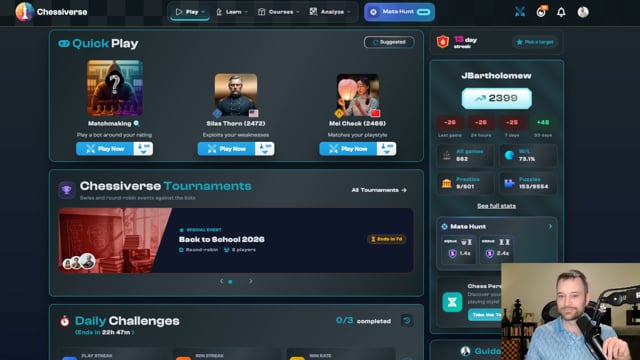
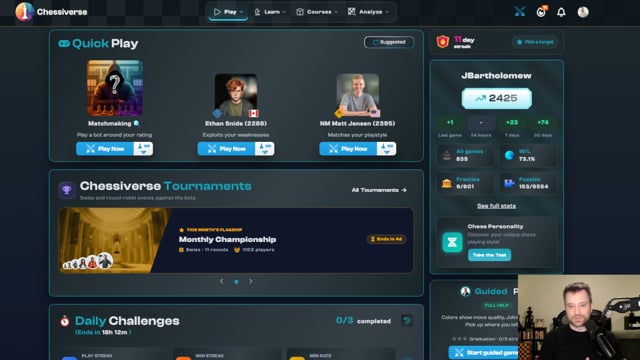
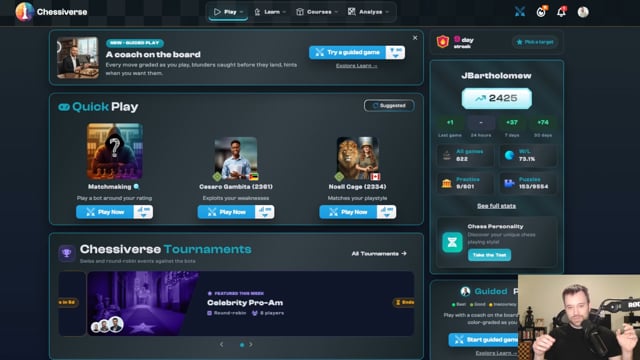
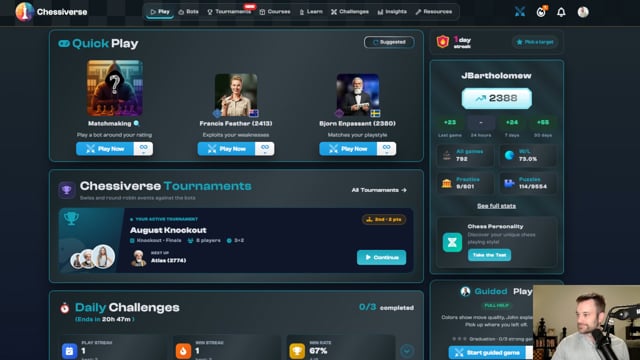
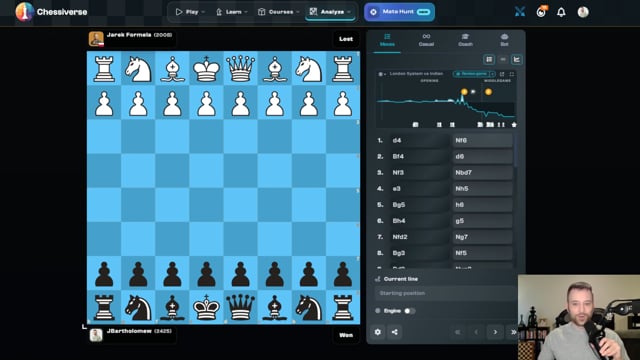
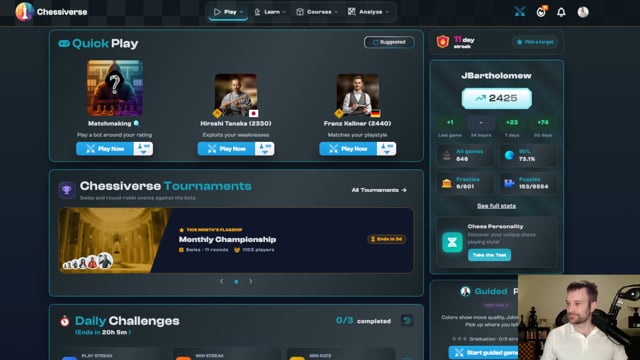
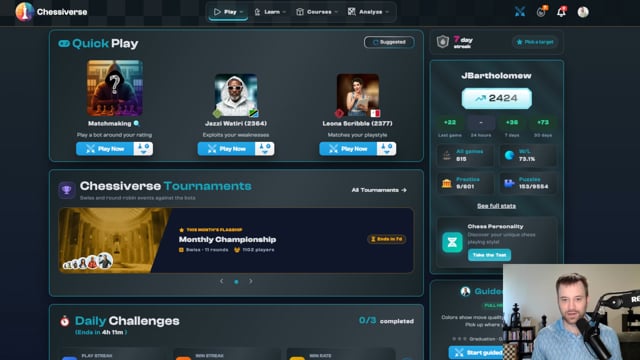
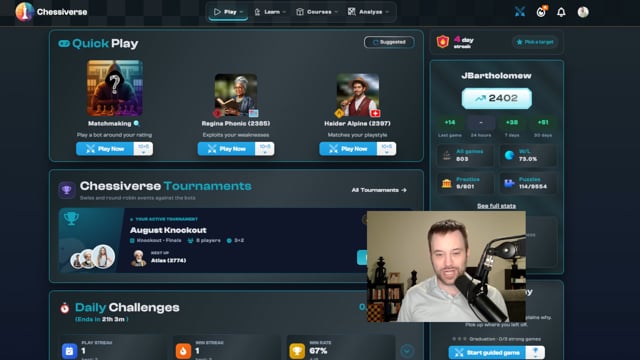
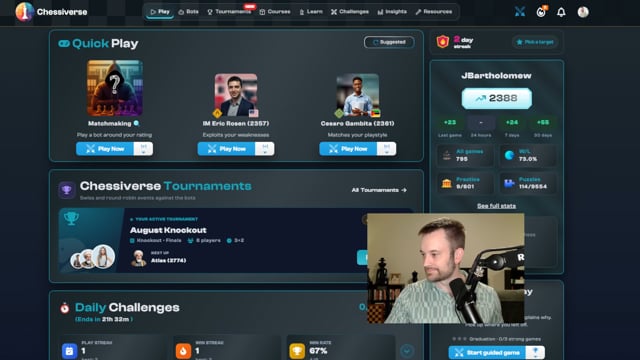
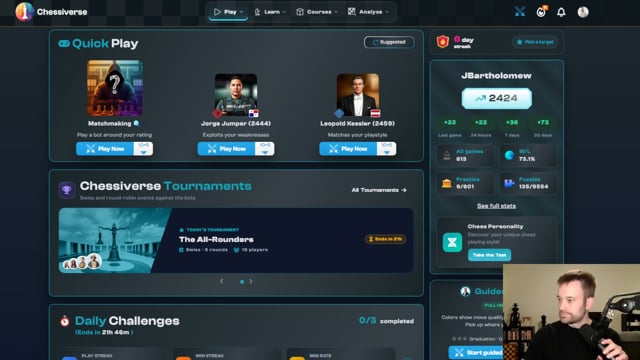
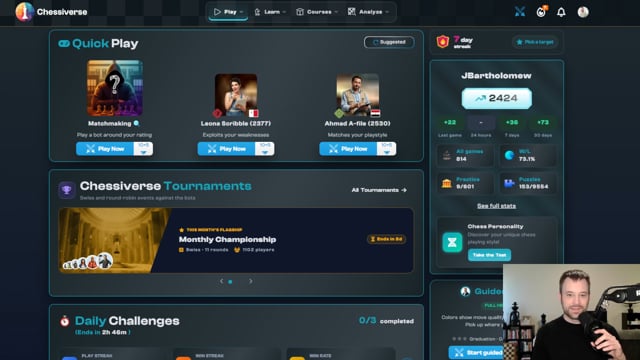
▶ Watch: Welcome to Chessiverse! — a video tour of the dashboard.
Does Chessiverse have tournaments?
Yes — tournaments have shipped. You can enter official daily, weekly, monthly and featured editions (in rating groups from U500 to Open), or build your own from the Tournaments hub. Supported formats are Swiss, round robin, knockout, double elimination and match (a series of games against one bot), playable rated or casual, with standings, crosstables and performance ratings when they finish.
Everyone can play tournaments. Premium unlocks every bot in every tournament and unlimited simulated bot-vs-bot games; free accounts are limited to the free-tier bots and one simulation per tournament. Full details are in Game modes.
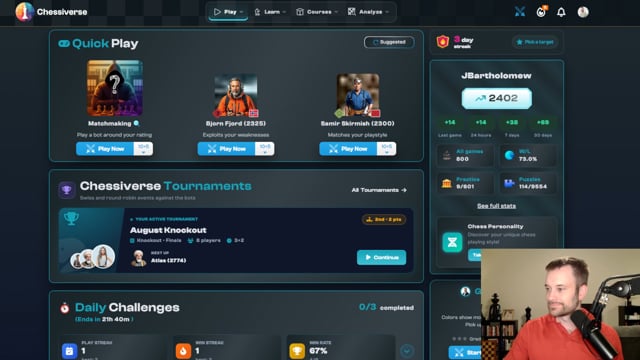
▶ Watch: Tournaments video walkthrough.
Will Chessiverse keep adding new features?
Yes. We have a large backlog and ship regularly — recent additions include tournaments, Guided Play, and the puzzle Sprint. You can follow what went out on the changelog.
If you have a feature idea or want to push us to prioritise something, tell us on Discord or via the contact page.
How do I report a bug or suggest a feature?
The fastest channels are our Discord server and the contact page (bugs go to support@chessiverse.com, feedback to info@chessiverse.com). The more detail (browser, what you were doing, screenshots) the faster we can act on it.
Are there pages for the creators behind the celeb bots?
Yes. Each chess content creator we partner with for a celeb bot has a profile page under /creators, with their bio, channels, openings, and a link to play their bot. The hub at /creators lists all of them.
From any celeb-bot profile in the app you'll see an About the real {Name} → link that jumps to the matching creator page.
Are there video walkthroughs of Chessiverse features?
Yes. The Feature videos section on this page collects 13 walkthroughs recorded by John Bartholomew — covering the dashboard, Guided Play, Tournaments, Speedrun, Puzzles, the Analysis Board, Custom Position, Takebacks, Coach, and more. Individual answers throughout the FAQ also link to the relevant video with a ▶ Watch link.
Does Chessiverse work with electronic chess boards?
Yes, via the Chessconnect browser extension and apps, which connect electronic boards (including the ChessUp 2) to Chessiverse. When Chessconnect is installed, its connect button appears in the Chessiverse header on desktop and phone, and in the board footer on game and analysis screens on phones.
Does Chessiverse have seasonal themes?
Yes. The header shows integrated Chessiverse artwork for several occasions through the year: Halloween, Christmas, New Year, Easter, Midsummer, International Chess Day (20 July), Valentine's Day, Earth Day, April Fools' Day, and the Chessiverse Anniversary (7 August, when Chessiverse first launched in 2024).
Each theme uses the same branded Chessiverse logo with occasion-specific scene artwork and subtle independent animations. Hover (or tap) the small info glyph next to the logo to see what the occasion is and when it runs. Seasonal motion is always disabled on board screens and whenever you have reduced motion enabled.
Bots
How Chessiverse bots are built, how they behave, and how to give us feedback on their moves.
Why does Chessiverse have so many bots?
Two reasons. First, the way we build bots scales easily — making one or making a hundred isn't very different for us. You can read more in How Chessiverse Bots Are Created.
Second, we think a roster of distinct opponents is more fun than a single bot with sliders. Each Chessiverse bot has its own personality, opening preferences, and weaknesses, so practising against the roster feels closer to playing different humans.
How can I report a strange bot move?
Please do — the more reports we get, the faster we can improve the bots. The most direct channel is the in-game feedback flow (where you can flag playstyle, opening, or chat issues), and you can also reach us in our Discord or via the contact page.
Do bots have distinct playstyles and openings?
Yes. Each bot is placed on four axes:
- Playstyle: defensive ↔ aggressive, and simplifying ↔ complicating.
- Openings: solid ↔ sharp, and unprepared ↔ theoretical.
Read more in Three Playstyles and Three Opening Books.
How do I open a bot's profile page?
Tap a bot's name or avatar on a bot card or in the bot list — that opens a quick preview modal with a summary of the bot. To get to the full profile page, click the bot's thumbnail inside the preview modal.
The full profile shows the bot's rating (estimated Elo plus current dynamic rating), a playstyle quadrant, opening preferences and analysis, your win/loss record against the bot (including a breakdown of wins as White vs wins as Black), and a carousel of your recent games against that bot.
What do the stars on a bot card mean?
The star is a "beaten" marker. A gold star means you've defeated that bot at least once; a grey outline means you haven't yet. It's a quick way to see your progress across the roster.
Can I favourite bots?
Yes. Tap the heart icon on any bot card or profile to favourite a bot — favourited bots are quick to filter back to from the Explore page.
How do I filter and sort bots on the Explore page?
The Explore page lets you narrow the roster by:
- Rating (slider or rating-band presets)
- Playstyle (the defensive ↔ aggressive / simplifying ↔ complicating axes)
- Opening style, opening name + colour (white/black), and Opening Type:
- All — every bot
- Prepared repertoires — only bots with a hand-prepared opening book
- Statistical — only bots whose openings are derived statistically
- Country
- Favourites, Premium (all / premium-only / free-only), Beaten (all / beaten / unbeaten / beaten as White / beaten as Black), Played (all / played / unplayed), VIPs, and Course bots (if you own a course)
Sort by Rating, Name, Playstyle, Premium, or Added (recency).
What do the colored borders around bot avatars mean?
The colored ring around a bot's avatar reflects your record against that bot:
- Green — you mostly win.
- Red — you mostly lose.
- Grey — mixed results (mostly draws or roughly even).
- No border — you haven't played that bot yet.
Hover the avatar on desktop to see a tooltip with your full record: wins / draws / losses, wins as White vs Black, and score percentage. The same coloring is used on bot cards across the app and in the bot profile popup, so a bot always looks the same wherever you see it.
Related: Chess bots overview, How Chessiverse bots are created, Play against a computer
Game modes
Challenges, Guess the Elo, Speedrun, Daily Matchup, and rated vs. casual.
What game modes are available?
Beyond regular games against a bot of your choice, Chessiverse includes:
- Challenges — curated matchups around a specific position or goal.
- Tournaments — Swiss, round-robin, knockout, and double-elimination tournaments against bots, with official daily/weekly/monthly editions and a custom builder.
- Daily Matchup, Daily Endgame, and Daily Master — fresh single-game prompts that change every day.
- Weekly Challenges and Daily Challenges — recurring challenges you can grind for streaks.
- Speedrun — climb the bot ladder from the bottom up.
- Guess the Elo — watch a bot play and estimate its rating.
- Guided Play — casual games with an AI coach on the board.
- Courses — guided opening-focused training against course-specific bots.
- Custom Position — set up any position and play from there.
▶ Video walkthroughs: Challenges · Tournaments · Speedrun · Guess the Elo · Guided Play · Custom Position
What's the difference between Challenges and a normal game?
Challenges are structured matchups — you start from a specific position or with a specific goal in mind. Normal games let you pick any bot from the roster and play freely.
▶ Watch: Challenges video walkthrough.
How does Speedrun work?
Speedrun pits you against the bot ladder from the bottom up — the goal is to climb as high as you can. The dedicated Speedrun page shows your current rating (with a progress bar toward your highest peak), a preview of the next opponent, and a tier ladder — Ascendant, Dominator, and Immortal — that you unlock as you climb.
You can have up to 3 active speedruns at once, each with independent ratings, bot progression, and game history. Tap a run card to select it — the hero stats (rating, progress, tier, highest peak) update to show that run.
When you start a new speedrun you can pick:
- Starting position — the standard start, a specific opening line, or a custom FEN.
- Fixed color — always play White, always Black, or let the streak-adjusted coin flip decide.
- A name for the run, which you can rename later.
Each run card has inline rename, resume, finish, and delete actions. Finished runs move into your run history with their run number, win/loss stats, highest rating, and game count, and you can resume an archived run (once per 30 days) to pick up where you left off.
Speedrun needs access to the full bot roster to work properly, which is why it's a premium feature — see Premium.
▶ Watch: Speedrun video walkthrough.
Can I set a custom rating range for a speedrun?
Yes. When starting a new speedrun, turn on the Custom range switch (under the four tier tiles) to set your own Start rating (400–3000) and Target rating (start + 200 to 3200). Defaults are 1200 → 1800.
Custom runs start at your chosen rating and finish when you reach the target. Fixed tiers are unchanged: Ascendant starts at 400, Dominator at 1600, Immortal at 2400, and Full at 0 — their lower bound rather than always starting at 400.
What's the difference between a rated and a casual game?
Rated games count towards your Chessiverse rating; casual games don't. The toggle lives in the Play box when you pick a bot. Use casual when you just want to play without affecting your number — for experimenting with an opening, warming up, or playing a much-stronger bot just to learn.
Can I play multiple games at once?
No — you can only have one game in progress at a time. If you try to start a new game while one is ongoing, an ongoing-game banner prompts you to resign or abort the current one first. This keeps your rating and stats clean and avoids fragmented sessions.
What is Quick Play?
Quick Play is a one-tap way to start a casual game against a random, rating-matched opponent using your last game settings (time control, side, etc.). It's available from the Play menu in the site header, and also as an option on the Play button dropdown throughout the app.
If you already have a game in progress, the header shows a Continue shortcut instead, taking you back to your in-progress game.
What is Guided Play?
Guided Play is an unrated training mode where the board coaches you as you play. Pick up a piece and its legal destination squares glow by engine-graded quality — neon green for the best move down to red for a blunder — so you can see your options before you commit.
Pick an assistance level to match how much help you want:
- Full help — every legal move colour-graded, plus post-move feedback from John's coach bubble, a "Get hint" ladder (nudge → show the piece → show the move), and tap-to-explain move reviews on any square marked with a ?. At this level the board also flashes the bot's better reply when it plays something other than its best move — so you can see what you missed.
- Peek — best moves and blunders highlighted; the rest of the board stays quiet.
- Hint only — no glow, but attempting a blunder triggers a red warning and a confirmation before the move is played. An eye button in the hint row swaps in a compact eval gauge for a few seconds — the weakest hint John gives, just telling you who's better.
You can also silence commentary mid-game: the hush button on John's coach bubble (the comment-slash icon) toggles all commentary off, and the in-game Guided settings let you turn player and bot comments on or off independently. Hints, the eval peek, the blunder guard, and the end-of-game debrief always stay on.
Guided games are always unrated and don't affect your rating or stats. You can start one from the normal Play flow, from a custom position, or from an opening on the Learn page.
▶ Watch: Guided Play video walkthrough.
What is Sparring in Guided Play?
Sparring makes a guided game two-way: instead of only playing straight through, you can rewind, branch into what-ifs, and make the bot reconsider its moves — with the usual Guided Play board coaching still on. Sparring games are always unrated.
- Take back your own moves — rewind a move or jump back to any earlier move of yours.
- Bot takebacks & rethink — with Allow Bot Takebacks on (under Guided play in settings; it follows your Allow Takebacks setting unless you set it explicitly), rewinding to one of the bot's moves lets it rethink and try a different reply. You can also prompt it to reconsider and pick from alternative candidate moves. On forced opening or course lines the bot stays in the line until the game leaves book.
- Explore what-ifs — branch off into hypothetical continuations to see how a position could have gone, then step back to the real game.
- Save as training PGN — export the sparring session, including the variations you explored.
What are tournaments and how do they work?
Tournaments pit you against a field of bots across multiple rounds. You can enter official tournaments (daily, weekly, monthly, and featured editions with trophies) or build your own from the Tournaments hub. Official tournaments run in rating groups, from U500 up to Open.
Supported formats:
- Swiss — pair against opponents on similar scores each round; good for large fields.
- Round-robin (single or double) — play every other participant.
- Knockout and double elimination — bracket tournaments.
- Match — a series of games against one bot you choose, set up in the custom builder.
Tournaments can be played rated or casual — the setting is chosen per tournament (in the custom builder) or per run (for officials, alongside the time control). Rated tournament games move your rating like any other rated game, count towards beaten bots, and appear in your game history.
Once a tournament starts you can't abandon it while a round game is in progress — every started game must reach a real result. Finished tournaments show a recap with standings, W/D/L, and a performance rating for every participant. If you finish on the podium, the top-three view replaces the corner result box.
Round-robin tournaments include a Standings | Crosstable toggle in the standings card: the crosstable shows per-game results (1 / ½ / 0, dot for unplayed, asterisk on the diagonal) with rows and columns ordered by current standings. Both games per cell are shown in double round-robins.
Tournaments are publicly shareable — every tournament detail page has a share button, and the link works for anyone (no login required). Non-owners see the same standings, pairings, and recap as the owner.
The custom builder has a filterable bot picker with presets (Around my rating, Easy prey, Challengers, Aggressive, Savages, Solid wall, Sharp openings, and more), search, and one-click autofill to fill empty slots from your current filter.
▶ Watch: Tournaments video walkthrough.
Can I watch bot-vs-bot pairings in a tournament?
Yes. In an ongoing tournament, each pairing that doesn't involve you can be resolved in two ways: Generate result (an instant rating-based outcome — the classic behaviour) or Simulate, which runs a real bot-vs-bot game you can spectate as the moves come in.
Tournament pages have an Automatic / Watch or Generate mode switch, per-pairing actions (Generate, Simulate, Show Game), and a Generate All Remaining shortcut when you'd rather resolve the round quickly. Simulated games are saved with the tournament and remain replayable after the tournament finishes, with full move navigation and the standard board controls.
Free accounts can run one simulated bot game per tournament; simulate as many as you like with Premium.
How can I tell if the Play button will start a rated, casual, or coached game?
The Play button shows the current time control on its face, and its dropdown lets you switch between Rated, Casual, and Coached (Guided Play) modes before you start. Coached games are always unrated, so picking a guided level automatically switches the mode to casual.
If you're still unsure what mode is active, open the dropdown before hitting Play — the selected mode is highlighted there.
What is Mate Hunt?
Mate Hunt is a timed checkmate training mode at chessiverse.com/mate-hunt. You're given a basic endgame — KRvK, KQvK, KBBvK, KBNvK, and more — and race to deliver mate as fast as you can. Every completed run is timed from your first move through checkmate.
Each setup includes:
- Guided lessons that walk you through the technique for that mate, with annotated arrows and squares.
- Practice mode for untimed reps against the defending king.
- Timed hunts that score you into Bronze / Silver / Gold / Platinum tiers.
- Daily, Weekly, and All-Time leaderboards, with rating-bracket filters so you can compare against players near your level.
You can replay any run from the leaderboard — leaderboard rows open a timed board replay with play, pause, restart, scrubbing, and playback speed controls.
KRvK is playable without an account at /mate-hunt. Guest results are stored locally and can be claimed to your account after signup.
What is Guess the Move, and which games work with it?
Guess the Move (called Play It Blind before) is a solitaire-chess mode: the rest of the game is hidden, and you try to find the moves that were actually played. Each move is graded against the original: exact match, an alternative the engine still rates as good, or worse.
You can play any game this way:
- Any of your own games from history
- Games in a collection (your own or a shared one)
- The game currently open on the analysis board
- Book games in the reader
Pick your side, or play both sides. When the line runs out, a post-game card shows the tally: how many moves matched, how many were near-equal alternatives, and how many were misses.
Two numbers sum up a run. Moves matched is how many of your moves were the move actually played. % of the points also credits good alternatives: the game's move, or one the engine rates as just as strong, earns 3 points, a good move 2, an inaccuracy 1, and a mistake or blunder 0. So "29 of 41 moves matched · 74% of the points" means you found 29 of the 41 moves and earned 74% of the points the run could give.
On a collection's page, Guess the Move progress counts the games you've finished ("3 of 20 games") and your points across them. Your latest finished run of each game counts; an unfinished run counts once you complete it.
How do I browse all my annotated games?
From the Collections page, open the Annotated Games view to browse every annotated game you have access to across all your collections — your own and shared ones. Each row shows a board thumbnail, the game, and a chip linking back to its source collection.
A game is counted as annotated if it has real notes or variations attached — machine-generated clock and evaluation tags don't count, so your list stays focused on games you (or a coach) have actually written on. Clicking a row (or its thumbnail) opens the game in the analysis board.
What are Special Event trophy bots and final bosses?
Special Events are themed tournaments with a trophy bot as a reward. Each event card shows the trophy bot's portrait, the entry deadline, and a short description of what you'll earn.
Winning the main tournament rounds unlocks one rated boss game against the event's final boss, played at the tournament's time control. The boss step appears at the end of the bracket (an added final round for Swiss and round robin; a Boss Final after the championship for knockout and double elimination). A decisive win against the boss permanently unlocks the trophy bot — a draw, loss, or resignation requires a fresh tournament win to try again.
Earned boss attempts stay available even after the entry deadline passes and after subscription changes, so you can finish what you started. Unlocked trophy bots live in Your Trophy Bots on the Trophy Bots page and the dashboard, and remain yours permanently. A dedicated Special Event Trophy Bots section shows upcoming, open, ended, and unavailable events so you can see what's on the horizon.
Can I compare my games against a course?
Yes. In the analysis view, the In your courses card (titled In books & courses when books match the position too; in the right column, and in Explore → Books & Courses) now has a Compare this game section. It lists owned courses the game's mainline stays in from the first move, deepest first (e.g. "in the course until 8…Bg4"). Compare opens the course with your game laid over its main tree, marking the move where your game left the course.
A course's My Games tab also gets a Whole course mode (next to This position in the Show my games switch) — all your games that entered the course, filtered server-side so matches further back in your history are included — plus an Analyze link on each row to open the game in the analysis view without having to find it again.
What is a Match tournament?
Match is a tournament format where you play a fixed series of games against one chosen bot. In the custom builder, pick Match as the format, choose your opponent, set the Number of Games (2–24, default 11), pick Your First Colour (Random, White or Black), and colours alternate after each game.
Match tournaments use the same identity, navigation, pairing browser, play/resume controls, game history, and abandon dialog as other tournament formats. Instead of standings and a podium, a Match Score section shows the head-to-head result — a completed match reads Match Won, Match Lost or Match Drawn — and every game remains available for review afterwards. On the list of past tournaments, choose Match in the Format filter and an Opponent search appears, so you can narrow down to matches against one bot.
What tournament rating groups are available?
Official tournaments are grouped into six rating brackets: U500, U1000, U1500, U2000, U2500, and Open. When you enter an official tournament, pick the group that matches your current rating — the picker marks the recommended bracket with a For You badge, each group tile shows that group's format, field size and time control, and the entry sheet shows its rounds or stages.
Each group runs its own field with its own trophies and medal placements, so you compete against players near your strength. Mixed events show each group's real settings rather than advertising one group's details for every bracket.
Related: Play chess online free
Guided Play
John Bartholomew's AI coach — assistance levels, hints, the blunder guard, lessons, and graduating to rated play.
What is Guided Play?
Guided Play is a coaching mode at chessiverse.com/learn where IM John Bartholomew's coach sits at your side while you play real games against our 1,100+ personality bots. Every move is color-graded by an engine — from best (green) down to blunder (red) — so you get feedback while you play, not just after the game. Read the full tour on the Guided Play page.
▶ Watch: Guided Play video walkthrough.
What do the three assistance levels mean?
You pick how much help you want:
- Full help — move colors are always visible on the board, plus an eval bar showing who's better.
- Peek — colors are hidden while you think; hold a piece for half a second to reveal its grades. The eval bar stays on.
- Hint only — no colors and no eval bar. You play on your own and ask for a hint when you're stuck.
You can move between levels as you improve — Hint only is the level that counts toward graduation.
What is "Your Candidates" mode?
Your Candidates (formerly "Sit on your hands") is an opt-in guided discipline that makes you generate up to three candidate moves before one may be played. Try to move on the board before your list is ready and the move is held (drawn as a numbered arrow); once you're ready, tap a candidate's play button to commit it.
After you play, John grades the whole set — was the best move on your list, which one you picked, how many were strong. Naming a single candidate is itself the "nothing else is playable" claim, and he grades that too.
The candidate count is a maximum, not a quota — you can play as soon as you have one candidate you trust. The set also adapts to the position: in check with only two legal moves, the card asks for both. In the opening, book moves are recognised as theory rather than ranked against each other.
The phrase "sit on your hands" survives as the coaching idiom in John's voice in-game, but the feature itself is now called Your Candidates. Turn it on under Guided play in settings, or read more on the Guided Play page.
How do hints work?
Hints follow a 4-step ladder, so John never blurts out the answer. Each step reveals a little more:
- Threat check — what is your opponent threatening?
- Nudge — a pointer toward the right idea.
- Piece — which piece should move.
- Move — the actual move, if you still need it.
You stop at whichever step unlocks the position for you.
What is the blunder guard?
If you're about to play a blunder, the coach intercepts it before it lands on the board, explains what you missed, and hands the move back to you. You learn from the mistake without losing the game to it.
What are lessons?
Lessons are savable position bookmarks. When you hit a position worth remembering, save it as a lesson and it's stored with John's comment attached — over time your collection becomes a personal course built from your own games.
How does graduation work?
The coach tracks your progress toward being rated-ready. The bar: three Hint-only games in a row that are blunder-free (a blunder the guard catches counts too), with at least 80% strong moves and at most 2 hints per game. Clear it and you've shown you can play clean chess without help — time for rated games.
Why are guided games unrated?
Because the coaching changes the moves you play. Graded moves, hints, and the blunder guard all mean the game isn't purely your own strength, so guided games are always casual — your rating stays a true measure of your unassisted play. The graduation arc is the bridge from coached games to rated ones.
Related: Guided Play, Opening guides
Game settings
Time controls, board look & feel, sounds, and per-game behaviour.
Where do I find game settings?
Chessiverse has one unified settings system used in a few places:
- Default game settings — the Game Settings button beside the Quick Play / Continue button (in the site header, and in the phone menu) shows a summary of your current defaults and opens them for editing: Game Mode (Rated or Casual), Time Control, and — for casual games — Your Color and Guided Play. Every new game starts with these settings, so there's no pre-game dialog each time.
- Account settings — the full Settings tab on your profile page, organised into collapsible sections: Board & Pieces, Gameplay, Display, Sound, Profile Appearance, and Reset Progress.
- In-game Settings modal — tap the gear icon beside the board (in the arena or analysis view) to open the same sections in a compact modal, so you can tweak your setup mid-game.
The first time you play, a short two-step welcome walks you through the defaults; after that, games launch straight into play. Your Color and Guided Play apply to casual games — rated games always draw a side and are never guided. Changes persist across games and devices.
Do Chessiverse bots adjust to different time controls?
Bots only make minor adjustments based on time control (things like resignation likelihood). Their actual playing strength is fixed — meaning a bot will feel a lot stronger in a bullet game than in a long one.
This is intentional. With fixed bot strength you have a stable benchmark: if you reach 1500 against the roster untimed but only 1000 in blitz, you can see directly how much time pressure costs you.
Which time controls are supported?
The picker offers Untimed or Timed. Timed gives you Bullet, Blitz, Rapid, or Custom — where you can set your own minutes-per-side and increment. If you want a slow correspondence-style game, pick Untimed.
Can I show board coordinates, possible moves, and the last move?
Yes. Under Highlights in settings you can toggle:
- Show Coordinates — file/rank labels around the board.
- Show possible moves — dots on legal target squares when you pick up a piece.
- Highlight last move — colour the squares the bot moved from and to.
Can I change how fast pieces animate?
Yes. Under Piece Animation you can choose None, Fast, Normal, or Slow. None is instant — useful in bullet.
What do the Game & Bot Behaviour toggles do?
Settings in this group change how a game plays out:
- Confirm Move — ask to confirm a move before committing it on the board (helps avoid mis-clicks).
- Allow Resignations — let the bot resign when it feels the game is lost.
- Instant Bot Moves — bots move with no simulated thinking time, in both timed and untimed games.
- Bot Backgrounds — show the unique background art tied to the bot you're playing.
- Hide Speech Bubbles — hide the speech bubbles bots show above the board on certain moves.
Can I change the sound pack?
Yes. Under Sound Settings pick from six sound packs — Classic, Melodic, Digital, Playful, Mechanical, and Bright — and toggle All Sounds, Move Sounds, and Other Sounds independently.
Can bots offer draws, and can I offer one back?
Yes. Turn on Draw Offers in settings to enable a Draw button in your games (two-step confirm to send), and let bots offer you draws in positions where they consider the game level. When a bot offers a draw you'll see an Accept draw button next to a decline (✕) button; Accept also uses a two-step confirm.
Draw offers and agreed draws show up in the move list. With the toggle off, the Draw button is hidden and any bot draw offers are silently ignored.
Can I customise the board and pieces?
Yes — in account settings under Board & Pieces:
- Board Look — pick a board texture/colour, or toggle Bot Defaults to let each bot's theme drive the board.
- Piece Set — swap the piece style.
- Presets — pre-bundled board + piece themes if you'd rather pick a complete look in one tap.
Some theme packs are premium-only. Changes apply immediately and persist across games and devices.
Can I control when bots resign?
Yes. Under Gameplay in settings, the Bot resignations control has three modes:
- Auto — the bot resigns on its own when it feels the game is lost (the default, and how Chessiverse has always worked).
- Ask — the bot offers to resign instead. A modal shows the bot's portrait with Accept the win or Play on — decline and the bot keeps playing.
- Off — bots never resign; you'll always need to deliver mate (or take the win on time).
Can I auto-promote pawns to a queen?
Yes. In account settings under Gameplay, turn on Auto-promote to queen — pawns reaching the last rank promote to a queen automatically, without opening the promotion picker. The setting is off by default and syncs across your devices.
Need to underpromote occasionally? Hold Alt, Option, or Ctrl while making the promoting move and the full picker (queen / rook / bishop / knight) opens for that move only.
Can I turn off the animated clock icon?
Yes. In account settings under Display, toggle Animate Clock Icon. When off, the active game clock shows a static hourglass instead of the animated one. On by default.
Can I set whether pieces move by click, drag, or both?
Yes. In account settings under Gameplay (and in the in-game Gameplay panel), the Move Input preference lets you choose Both, Drag only, or Click only. Changes apply immediately to every playable board and sync across your devices.
Editor boards (position setup) always accept both input methods regardless of this setting, so you can still arrange pieces however you like.
What is blindfold mode, and does it stay on across devices?
Blindfold mode hides the pieces on the board so you play from memory. Toggle it from the in-game settings modal beside the board. The promotion picker and the piece you're dragging stay visible so the mode is still playable.
Blindfold mode is saved to your account, so it survives page refreshes and syncs across devices — start a blindfold game on desktop, pick it up on your phone the next day. When you load a game with blindfold still on, an info toast reminds you it's active and tells you how to turn it off.
How far back does Chessiverse fetch my Chess.com or Lichess games?
The default fetch window for linked Chess.com and Lichess accounts is the last 30 days. Change it from the window menu on the Linked accounts band in My Games — options are Last 30 Days, 3 Months, or 12 Months. Your choice syncs across devices.
12 months is the ceiling for the bulk fetch — a big Lichess account can take a minute or two to pull a full year. If you want a single older month, use the Import a Game finder's month picker to reach any month one at a time.
Reviewed games never fall out of the list, even if they're older than the current window. Unreviewed platform games outside the window drop off; PGNs you've pasted in are always kept.
Can I turn off piece animations and effects separately?
Yes. Under Piece Animation you set how fast pieces move (None, Fast, Normal, or Slow), and under Animation style you pick whether moves have decorative effects — None (clean movement, no effects), Inferno, or Chaos (with Playful, Mayhem, and Madness sub-options). Choosing None for the style keeps pieces moving at your chosen speed without any extra visuals, so you can have animation without flair.
Related: Play chess against computer
Playing a game
The game arena — the board, sidebar controls, and starting from custom positions.
How do I flip the board or go fullscreen?
Both live in the settings popup. Tap the gear icon in the action bar beside the board to open Game settings, then toggle Flip board (swaps which side is at the bottom) or Fullscreen (expands the board to fill the window). The same popup holds the other in-game toggles — sound, confirm move, show possible moves, highlight last move, and blindfold mode — plus a link to all game settings.
The panels beside the board are organised into tabs — the move list, the game/match info, and the bot each get their own tab (a Coach review tab appears once the game ends), so you can switch between them without losing board space.
How do I resign or abort a game?
Both live under a single flag button in the action bar beside the board. In casual games (and other games abortable at any point), tapping the flag opens a two-option menu:
- Resign — counts as a loss.
- Abort — no result is recorded (available before your first move in rated games, and at any point in casual/custom games).
Picking an option is the confirmation, so ending a game is still exactly two clicks.
Can I save and reuse custom positions?
Yes. Open Custom Position, set up the board however you like, and tap Save position. Use Load position in the same view to bring back any of your saved positions later — each one can be played, edited, or deleted from the list. Positions are saved to your account, so they're available on any device.
You can also organise saved positions into folders (one level, so folders hold positions but not other folders) — useful once you start building your own puzzle packs or repertoire sets. The Load Position modal groups positions by folder with expand/collapse, plus automatic groups for My lessons (guided bookmarks) and Ungrouped. Searching temporarily expands every folder so a match can't hide inside a collapsed one.
▶ Watch: Custom Position video walkthrough.
Can I load a position from a bot's profile?
Yes. Every bot profile has a Load Position option that opens a modal where you can pick from a list of openings and start a game against that bot from a chosen position. The list isn't bot-specific — it's the shared opening catalogue — but the bot you started from is the one you'll play.
The Continue after opening section in the same modal lets you jump straight into the position reached after a specific opening, so you can practise the middlegame phase directly against that bot.
Can I take back moves in a casual game?
Yes. Takebacks are available in casual, custom-position, and practice games, and in every guided game regardless of type. Turn on Allow Takebacks in settings (also available in the in-game Settings modal), then use the Take back button in the action bar to rewind — your last move and the bot's reply are both undone, leaving it your turn again. The button only appears once you've actually made a move to take back.
You can also rewind to an earlier move: hover over any of your own moves in the move list and click the ↩ rewind-to-here icon to jump the game back to before that move. Takebacks are unlimited per game, and past takebacks are recorded in the move list with the original move shown struck through next to the move actually played.
Rated games never allow takebacks, so your rating is never affected.
▶ Watch: Takebacks video walkthrough.
Can I play without signing up?
Yes. Visit /play-guest to play casual games against a selection of free bots without creating an account. Guest games don't save to a rating or game history — signing up is still the way to get a persistent rating, full stats, review tools, and access to the full 1000+ bot roster.
Can I add notes to specific moves in my games?
Yes. In the move list of any of your finished games, hover (or tap, on touch) a move to reveal its actions chip — the menu includes Add note (or Edit note if one exists). Notes appear inline under the move with a pen icon, and click to edit them again. The editor grows with the note and saves on Enter or blur.
Move notes also work on imported PGN games for signed-in users — notes are saved to your account against the game's PGN identity, so they persist across reloads whether or not you add the game to a collection. Anonymous accounts can't save personal notes.
For Guided Play games, you can also save John's coach comments as part of the game record — turn on Save John's comments under Guided play in settings and each move's verdict is preserved with the game. Notes, saved comments, and your original PGN's comments all come along in the PGN export.
Why does a profile page say "Profile Removed"?
That account has been deleted. The page shows "Profile Removed" with "This account has been removed." instead of the usual profile. Any links or shared references to that user will show the same message — the account and its personal data are gone.
If a profile is temporarily unreachable for another reason (network error, service issue), you'll see the generic error page instead.
Can I add a note about the whole game?
Yes. In the analysis view, the Info tab now has a game note section — free text up to 2,000 characters, line breaks allowed, kept separate from your per-move notes and Coach saved positions. Only you see it, and it's never shown on shared games.
With no note yet, tap Add a Note about This Game; afterwards, the note shows under the result line with an edit icon (Edit Note). Press Ctrl/Cmd+Enter to save or Esc to cancel. Game notes are available on your finished Chessiverse games (not on live games, imported pastes, or shared views).
Related: Play chess against computer
Analysing a game
Post-game review for your Chessiverse games and for games imported from elsewhere.
Can I review games after they finish?
Yes. After any finished game, the post-game popup has an Analyze & Share button that opens the game in the analysis view, where you can step through it move by move with engine evaluation.
Logged-in users also get Chess Coach in the analysis view, with two modes:
- Review the Move — pick any move and get an AI-written breakdown: a quality badge (BRILLIANT, GREAT, INACCURACY, MISTAKE, BLUNDER, …), how your move compared to the engine's best, alternative candidate moves with evaluations, and an eval-change summary with clickable moves.
- Full Game Review — analyse the whole game in one pass. Critical moments are highlighted in the move list, quality badges are overlaid on the board at the destination squares, and a summary breaks down inaccuracies, mistakes, and blunders. A side filter (Both Sides / White Only / Black Only) lets you focus the review.
Chess Coach works for both your Chessiverse games and games you paste in (including custom starting positions).
▶ Watch: Coach · Game Graph video walkthroughs.
Can I analyse a game I played somewhere else?
Yes. The Analyze menu in the header has two ways in:
- Analysis Board — opens a bare board you can set up or paste into.
- Import a Game — opens the board with the game finder already up.
The finder supports several import routes:
- Chess.com or Lichess by username — browse a month of games with filters, no copy-paste needed.
- Paste a PGN — one game or many; the finder lists what's inside a multi-game paste so you can pick.
- Upload a
.pgnfile. - Paste a single game's URL from Chess.com or Lichess.
- Paste a FEN to analyse a position.
Whatever you pick lands on the analysis board with the same engine review, Chess Coach, and eval graph you get for your Chessiverse games.
▶ Watch: Analysis Board video walkthrough.
What can I configure in the analysis view?
The Engine settings panel in analysis lets you adjust:
- Engine on/off — the analysis engine is off by default; turn it on when you want engine evaluation. If you'd rather have it start automatically, enable Default engine on in account settings under Gameplay.
- Engine lines — how many candidate variations the engine shows (1–5).
- Eval arrows — show coloured move arrows for the engine's top suggestions.
- Eval boxes — show numeric evaluation labels (depends on eval arrows being on).
- Show eval bar — a vertical evaluation bar to the left of the board.
These controls live in the analysis and game-review views only — the engine never runs in the live game arena, including right after a game ends.
▶ Watch: Analysis Board · Game Graph video walkthroughs.
Can I show an engine evaluation bar next to the board?
Yes. In the analysis view, open the Engine settings popover (in the moves panel) and turn on Show eval bar — a vertical bar appears to the left of the board showing the engine's evaluation of the current position, with the numeric score inside the bar (or M{n} for forced mates). The bar flips with the board when you flip orientation, and only renders while the engine is producing an evaluation.
How do I read the evaluation numbers and move notation?
Every evaluation on Chessiverse — the eval bar, engine lines, Chess Coach, and Guided Play — follows the same convention:
- Positive means White is better, negative means Black is better. +1.2 = White is up the equivalent of just over a pawn; -0.8 = Black is slightly better; 0.0 is level. The sign never flips based on which side you're playing.
- Forced mates show as #3 (White mates in 3) or #-3 (Black mates in 3).
- Single moves quoted without a move number follow standard chess notation: a leading ellipsis marks a Black move — Nf3 is played by White, …Nf6 by Black.
Can I click a move in the engine's analysis line?
Yes. In the analysis view, every move in the engine's suggested lines is clickable. Click move k in a variation and the moves up to and including that one are played on the board as a variation — same as if you'd entered them manually — and the engine immediately re-searches the resulting position. Hovering a move highlights it in teal.
Stale lines (shown while a new search spins up after stepping) render as plain text and aren't clickable, so you're never playing a move from a variation that no longer matches the position on the board.
What if the engine gets stuck on "Analyzing…" or fails to load?
The engine runs locally in your browser, so it needs to download a small worker script and a ~7 MB WASM binary the first time you turn it on. On a slow or flaky connection that download can fail — when it does, the moves panel now shows "Engine couldn't load — check your connection." with a Retry button that re-attempts the download.
If the engine ever appears to hang after stepping through many moves, toggle it off and back on — this was a known issue that has been fixed, along with lighter search settings on mobile so the engine responds more quickly to move changes.
Can I save "what if" variations while analysing a game?
Yes. In the analysis view, when you branch off from the actual game to explore a hypothetical line, the moves panel has a bookmark icon that saves the divergent line as a user variation. Saved variations render inline in the compact moves list using traditional PGN-style notation and persist to your account, so they sync across devices.
A trash icon next to the save button clears your saved variations for that game. Free analysis (pasted FEN/PGN) also supports saving variations, keyed to the position and moves you're analysing. Saved variations are also included when you export the game's PGN.
Puzzles have their own Analyze action in the done-state action row that deep-links the puzzle position into the analysis board. In puzzle-analysis mode the engine and variation saving are both available, so you can explore and bookmark continuations from the puzzle's end position.
What happens to unsaved variations in game analysis?
In the analysis view, lines you explore by making a move on the board are kept in memory until you press Save As Variation. While you have an unsaved line, the Save button shows an active state (its tooltip reads "Save As Variation (Unsaved)") so you can see at a glance that there's something worth keeping.
If you try to leave the page or switch to another game, Chessiverse prompts you before discarding the line — Stay, Discard, or Save Variation (closing or reloading the tab brings up your browser's own leave-page prompt). If you play a different move from an earlier point, the line is replaced right away and a Variation discarded toast appears with an Undo action, so you can bring it back without losing your work.
Can I go fullscreen in the analysis view?
Yes. Both analysis views — game review (/analysis/:id) and free FEN/PGN analysis (/analysis) — now support a fullscreen mode. Open the settings modal beside the board and toggle Fullscreen, or use the corner fullscreen icon.
Fullscreen hides the header, footer, and the right column (move list, bot info, coach) so you can focus purely on the position — useful for calculation practice. Press Esc or tap the exit button to leave fullscreen.
What is the eval graph in the Moves tab?
The eval graph at the top of the Moves tab in the analysis view plots the position's evaluation across every move of the game, as a White-POV winning-chances curve. Click any point (or scrub across the strip) to jump to that move on the board.
A layers dropdown lets you overlay extra information on the curve:
- Move quality — coach-review dots (matching your annotation filter)
- Game phases — opening / middlegame / endgame bands
- Opening — the detected opening name
- and more, with per-layer loaders and explanations behind the "What do these show?" modal
Your layer selection and the show/hide state of the graph itself are saved to your account, so they follow you across devices. If a game hasn't been reviewed yet, the graph has a Review chip that starts the game review right from there.
Can I choose which move-quality annotations show in the move list?
Yes. Above the move list, next to the list/compact toggles, an annotation filter button opens a checklist of the eight quality categories (Brilliant, Great, Best, Good, Inaccuracy, Mistake, Blunder, Book). Tick the ones you want to see badged in the move list and on the board.
By default the filter shows the flagged qualities (inaccuracies, mistakes, and blunders) — the same behaviour as before. Your selection syncs to your account, so it follows you across devices. The filter only appears once a game has been reviewed and has annotations to display.
Can I export a game's PGN with annotations, and re-import them?
Yes. PGN export is now an account setting — your "Include in PGN" choices apply to every export and sync across devices. Set them under Settings → PGN Export (Comments & Notes and Game Details), or use the quick-access Include in PGN menu in the FEN/PGN view, which also has a Reset all option.
The toggles are:
- Comments & Notes — Coach Review Notes (turning this off strips coach NAGs and comments for a clean PGN), Your Move Notes, Imported PGN Comments, and John's Guided Play Comments (shown when Guided Play is available to you).
- Game Details — Clock Times, Move Times (including for untimed games, where thinking time is measured from your own clock), Variations, Draw Offers, and Bot Resign Offers.
Games opened from a pasted or imported PGN (Lichess, Chess.com, master DB) now also export coach review when the review is available. Imported [%clk] and [%emt] clock/move-time annotations follow the Clock Times and Move Times toggles. Pasting an annotated PGN back into /analysis preserves annotations — variations become saved lines, NAG glyphs and notes show in the move list, and comments the PGN carried stay visible alongside coach output. Custom starting positions ([SetUp]/[FEN] headers) are honoured.
Can I export a game as an animated GIF?
Yes. In the analysis view, the right-column info panel has an Export as GIF action that opens a dialog with a live preview and customisation options: board orientation, whether to show player names, ratings, avatars, and clock times, and animation speed.
Your preferences are remembered for next time. The generated GIF can be downloaded or copied as a link — handy for sharing a game on Discord or social media.
Can the eval graph show my remaining clock time?
Yes. Open the layers dropdown above the eval graph and tick Remaining time (under Game) to overlay a clock line showing how much time each side had left across the game. It's a separate layer from Move times, so you can show either or both.
The layer greys out for games with no time control or no recorded move times. Both are off by default — tick them to show the overlays.
Which chess engine does Chessiverse use for analysis?
The analysis engine is Stockfish 19 (the 19.0.1 lite single build), running locally in your browser. The same engine powers game review, Guided Play, and the engine panel. The engine's name is shown in the engine panel header alongside the current depth and evaluation.
Can I see each player's remaining clock time during replay?
Yes, for timed games. When you replay a finished game in the analysis view, the player cards show both players' remaining time at the position you're viewing, updating as you step through moves — just like Lichess and Chess.com. Downloaded PGNs also carry the standard {[%clk H:MM:SS.s]} annotation after each move (with the Clock Times export option on), so clocks come along when you import the PGN elsewhere.
Times are rebuilt from what was actually recorded for each move, including increment and course-book moves where the clock didn't tick. If a move's duration wasn't recorded, that player's clock is hidden from that move onward rather than guessed.
Does the analysis layout use my ultrawide monitor?
Yes. The analysis workspace auto-fits up to five lanes on wide screens (about 2620px wide for a full-height window, and a little less in a shorter one) — the fifth lane sits to the left of the board, so the board stays centred with two lanes either side. On narrower screens you still get the usual two to four lanes.
Lane layouts are draggable and saved, so your arrangement is there next time. Turn lane mode on from the lane toggle in the game settings popup (Lane mode: arrange panels in columns) and the lanes are fitted to your current screen width.
What does the "Miss" move label mean in game review?
Miss flags a move that failed to capitalize on your opponent's mistake. It only applies when your opponent's previous move was a Mistake or Blunder and your reply gives back at least an Inaccuracy's worth of that opportunity, while still leaving you no worse than before their error.
A move that also damages your own position keeps its Mistake or Blunder label instead. Brilliant, Great, Book, and Best moves are never relabelled as Miss. Earlier reviews gain Miss labels automatically when you reopen them — no need to re-run analysis.
Can I scroll through moves with the mouse wheel over the board?
Yes. Turn on Scroll Through Moves under Settings → Display → Navigation & Interface. With the pointer over the board, wheel down plays the next move and wheel up steps back one. The page doesn't scroll while the pointer is over the board.
It works in live games, game analysis/review, and analysis from FEN/PGN. In a live game, scrolling back enters history view and scrolling to the latest move returns to the live position — the same as the arrow keys. The setting is off by default.
What sources can I browse in the Explore panel on the analysis board?
The analysis board's Explore section lists five sources for the current position:
- Masters — master-level games that reached this position.
- Lichess Explorer — the Lichess explorer.
- Chessiverse Collections — collection games that reach the position, newest first. Each row starts with the collection's cover and links back to it; a click opens the collection game in a new analysis tab.
- Books & Courses — books and courses that cover the position.
- My Games — your own game history at this position (requires an account).
In lane mode each source has its own detachable lane, and content only loads for sources you actually open — hidden tabs don't fetch data.
Can I click on move references inside coach comments?
Yes. In Guided Play commentary and in Game Review comments, verified move references are labelled with their full move number (for example, 11…Ne4) and are clickable. Click one and the board jumps to the exact referenced position, while the source comment stays visible so you don't lose your place.
A small Back to Position button in the top-right corner of the comment box takes you back to the position the comment was written about. References that can't be resolved unambiguously stay as plain text, so you'll never land on the wrong variation.
Puzzles
Puzzles, daily achievements, and what's free vs. premium.
Does Chessiverse have puzzles?
Yes — Chessiverse has a puzzle mode with a large library (9,000+ puzzles and challenges across the catalogue). Free accounts get puzzles built around the free-tier bots; premium unlocks puzzles built around any of the 1000+ bots.
▶ Watch: Puzzles video walkthrough.
How do I filter, sort, and find puzzles?
The Puzzles page toolbar lets you narrow the library by difficulty (or All to ignore the rating range) and status (unsolved, solved, failed, etc.), with a live count showing how many puzzles match your current filters. You can also switch between List and Preview views.
Sort options include Progress (least-played first) and Recently played, plus the standard sorts. Your difficulty, status, sort, and view choices are saved so they survive navigation and reloads.
On mobile, difficulty and status appear as compact dropdowns next to sort.
What are Daily Achievements?
A set of recurring daily targets you can hit alongside puzzles and games. Useful if you want a short, structured chess session each day rather than open-ended play.
What is puzzle Sprint mode?
Sprint is a distraction-free, continuous puzzle-solving mode. Tap the lightning bolt icon on the Puzzles page to launch a sprint using your current difficulty filter (Elo range or random).
Once running, puzzles auto-advance — solve or fail one and the next loads automatically. A compact HUD tracks your solved count, current streak, and accuracy, with controls for skip, hint (up to 3 progressive levels), and exit. Keyboard shortcuts: Escape to exit, Space to skip.
Sprint progress is saved to your account, so you can refresh the page or come back later and pick up the same session where you left off.
Openings
Opening guides, explorer, and how bots use openings.
Where can I learn about a specific opening?
Browse our opening library. Each opening has a guide, key ideas, common variations, and a list of bots that play it — so you can practise against the line you're trying to learn (or learn to refute).
Can I see which bots play which openings?
Yes. Each opening page lists bots known for playing it, and each bot's profile shows their opening preferences. This makes it easy to pick a sparring partner for a specific repertoire.
Can I play a specific opening from the very first move?
Yes. On any opening guide, the Play this opening CTA lets you pick a colour and a starting point:
- From the first move — a normal casual game from the standard start position where the bot follows the opening's mainline for as long as you do.
- From the final position — jump straight into the position at the end of the opening's mainline.
Play-from-move-1 works with any Chessiverse bot and is a Premium feature — pick from 550+ openings and the bot follows the line for as long as you stay in book. Play-from-the-end-position is available to everyone. Both options are also available in the Load Position modal on a bot's profile.
Which side do I play when I "play this opening"?
Chessiverse defaults to the opening's own side — Black for the Najdorf, the Caro-Kann, and other Black openings; White for the London, the Italian, and so on. A small note under the launcher names the opening's side when it has one.
You can override this with the You play toggle (♔ White or ♚ Black) on the Learn card and in the launch modal before you start the game.
How do I know what position I'll be starting from?
On the Learn card, hover the Play from the end of the line button and a mini board diagram appears showing the exact end position, oriented to the side you've chosen, with a caption like "After 1.e4 c5 2.Nf3 d6 … — you take over from here." That way you can see the position before committing to the game.
Related: Openings resource
Courses
What the courses are, how they work, what they cost, and where to find yours.
What courses are on Chessiverse?
Courses by strong players and coaches: complete opening repertoires, free courses to start with, and more on the way. The courses page shows what's out now, what each course covers and what's coming next.
How is a Chessiverse course different from a book or a video course?
You play the lines instead of only reading them. Every course comes with its own bots, and a dedicated Course Play dashboard lets you apply the course's opening lines to real unassisted games — Matchmaking, Rematch, Your Pick, a Daily Matchup, a Key Position Challenge, and course Tournaments, all against the course's own bots. Course games have their own Course Rating, history, and postgame outcomes, so your main rating stays untouched while you drill the repertoire.
The interactive PGN viewer lets you step through every line and its comments. On multi-chapter courses, a dedicated Chapters tab lists each chapter with your reading progress (positions viewed) and line counts.
The idea is "don't memorize, master": understand why the moves work, then prove it over the board.
Are courses included in Premium?
No. Courses are sold separately: each one is a one-time purchase with lifetime access to the course and its bots. Premium members get 30% off every course, applied automatically at checkout. See Premium.
Are there free courses?
Yes. The Wayward Countergambit and ChessGoals – Vienna are free. Get them from their course pages.
How much does a course cost?
Each course page shows its price for your country, with VAT included where it applies. Premium members see their 30%-off price there too.
Can I get a refund on a course?
Yes. If a course isn't for you, email support@chessiverse.com within 30 days of buying it for a full refund, no questions asked.
Where do I find my courses?
Every course you own is listed in Your Course Library on your account page, with where you are in its study plan. You can also open any course from the courses page.
How do course study plans work?
When you own a course, the Your Course Library section on your account page lists every owned course with its current study-plan state — not started, in progress (showing the current day, your daily commitment in minutes, and the next step), or completed.
Each course also has a 30-day study plan built around the philosophy "don't memorize, master" — instead of drilling lines from memory you play full games and guided exercises against course-specific bots. The Up Next button launches the next step directly (a game, or a Key Idea / Refute the Mistake / Read the Key Line exercise), and finished steps can be revisited with Analyze Game to review what happened.
If you finish a plan and want to run it again, the completed view has a Restart action.
Can I turn off the course's board arrows and highlights?
Yes. Open Course Settings from the course toolbar and toggle Show Annotations. When it's off, the arrows and square highlights the course author drew for the current line are hidden immediately and stay hidden as you navigate or reload.
Your own personal drawings, the engine's arrows, and alternative-move arrows all remain available — only the course-provided annotations are affected. The setting is on by default and syncs across devices.
How do postgame outcomes work in Course Play?
After a Course Play game, the Course Results panel in the postgame stacks three outcomes: Line (did you follow the course line and where did you deviate), Opening (which opening checkpoint you reached), and Game (the normal result). You'll see the first deviation with the course move you were expected to play, and course-aware Next Up actions to keep training the same line or move on.
Course wins against the course's bots still earn normal beaten-bot credit, and course boss wins unlock normal Trophy Bots. Course games appear in your normal history, profile, and position explorer under a shared Course Game identity with the actual course title, but your Course Rating is tracked separately from your overall rating.
Related: Courses
Chess personality
The personality quiz, types, DNA, and persona play.
What is the chess personality quiz?
It's a ~2-minute quiz at /chess-style-quiz that maps your playing tendencies onto a chess personality type. No signup needed to take it.
What is Chess DNA?
Chess DNA is a deeper profile of your playing style across eight markers:
- Conventional ↔ Creative
- Solid ↔ Sharp
- Strategic ↔ Tactical
- Simple ↔ Complex
- Avoid endgames ↔ Seek endgames
- Symmetric ↔ Asymmetric
- Safe ↔ Risky
- Quiet ↔ Forcing
Learn more at /chess-dna.
How many personality types are there?
31 — see /chess-personality-types for the full set, with a description of each.
What is Personaplay?
Personaplay lets you adopt a chess personality and play in that style — a fun way to explore an approach that isn't your default.
Related: Chess personality quiz, Personality types, Chess DNA
Practice & training
How to use Chessiverse to actually improve.
How should I use Chessiverse to actually improve?
Pick bots near your current rating and play full games — not just a few moves. Use the post-game analysis to find your biggest mistake, then look for a bot that punishes that specific weakness. Repeating that loop is the fastest path to improvement.
On the Explore page, Instant Play suggests a bot near your rating using a distribution so you get variety within the band you should be playing.
▶ Watch: Practice — a video walkthrough of practice positions.
Where do I start as a beginner?
The Learn chess and Chess practice pages explain how Chessiverse helps beginners and link into the right starting points. From there, sign up and play your first few games against bots at the low end of the rating ladder — your rating will start settling within around five games.
Related: Chess practice, Learn chess
Stats & performance
Your rating chart, win/loss records, hiding your rating, and exporting your games.
What stats does Chessiverse track for me?
The Stats page shows:
- Rating chart — your rating over time.
- Games — total wins, draws, and losses against the roster.
- Bot Facts — your nemesis (bot you've lost to most), favourite bots, best win (highest-rated bot beaten), worst loss, and an aggregate of the playstyles you've faced.
My Games also shows the time control for each game (Bullet, Blitz, Rapid, Untimed, or your custom setting), so you can scan or filter your history by how the game was played.
Why did my rating change after a game?
Your rating moves based on the result and the rating gap to the bot you played. Beating a higher-rated bot gains more rating than beating a lower-rated one; losing to a lower-rated bot costs more than losing to a higher one.
Why is my rating shown as "???"
Your rating stays hidden as ??? until you've completed your first 5 rated games. That's enough for the system to lock in a reasonable estimate of your strength. Once you cross that threshold, your rating reveals on your profile, in the header, and on the Stats page — and it'll keep updating after every rated game from there.
If you'd rather keep your rating private after it reveals, you can hide it in account settings under Profile Appearance → Show Rating.
Can I hide my rating?
Yes. In account settings under Profile Appearance, turn off the Show Rating toggle — your own rating is then hidden across the app: the header, your profile, the username box, the live arena and game-history player rows, the matchmaking title, and the dashboard rating-change boxes (Last game / 24 hours / 7 days / 30 days).
Bot and opponent ratings are never affected. On the Stats page, the Rating section is hidden behind a one-click Show my rating reveal so you can peek at it on that page without flipping the global setting back on.
Your rating still updates in the background, and it remains visible in a few places where it's structurally needed (like the rating-delta after a finished rated game).
Can I reset my stats?
Yes — account settings has a Reset Progress option. It clears your beaten-bots count and stats like nemesis, favourite bots, best win, worst loss, and playstyle aggregates. Your rating and game history are not affected by reset.
If you want to fully reset your rating, please contact us — that isn't currently a self-serve option.
Can I export my games?
Yes. Open My Games and tap Export PGN (the download icon) to download all your Chessiverse games as standard PGN — readable by any chess tool (Lichess, Chess.com, ChessBase, SCID, etc.).
You can also export specific games: in My Games, tick the games you want and tap Export PGN to download just those.
Can I filter my game history?
Yes. My Games has a filter dialog that lets you narrow your games by:
- Rated — a tri-state filter: Both, Rated only, or Unrated only. Applies across every game type, so rated course games, unrated challenges, and so on are all reachable.
- Game Types — one toggle per kind: Regular, Custom Positions, Guided Play, Challenge, Practice, Daily game, Key position, Course game, Tournament, and Climb. Every game is exactly one type, so the toggles are mutually exclusive. Each row has an Only shortcut, and the section header summarises the current selection ("All types", "9 of 10 types", etc.).
- Result — Wins, Losses, or Draws
- Speed — Bullet, Blitz, Rapid, Classical, or Unlimited
- Termination — Checkmate, Resign, Time, Stalemate, and other endings
- Player Side — the games you played as White or as Black
- Review Status — whether you've reviewed the game or not
Aborted games are excluded by default. Active filters show a count on the toolbar so you can see how many games match at a glance, and Reset filters restores the default selection in one tap.
Can I search my games by board position?
Yes. In My Games, open Filters and use the Position section to paste a FEN into the Position (FEN) field and tap Apply Position — only your games that reach that exact position are listed. It searches your Chessiverse games only, not imported ones. Clear Position removes the filter. Matching compares placement, side to move, and castling rights (en passant and clocks are ignored), and matching games open at the relevant ply so you land straight on the position.
Position combines with your other filters (opponent, result, date, speed, etc.) and sort/paging. The analysis board's Explore section also has a My Games source that follows the position on the board as you step through moves — handy for seeing which of your own games reached the current position.
Can I export imported or pasted games as a GIF?
Yes. In My Games, every game with moves has an Export As GIF action in its row menu — not just games played on Chessiverse, but also pasted PGNs and games imported from Chess.com or Lichess. Games played here open the full GIF dialog with avatars, clocks, and move quality; other games use a PGN mode showing the names and ratings from the row with the board oriented to your side when the game records it.
The generated file is named after the players and date (for example, chessiverse-game-julio-kaplan-vs-david-bronstein-29-12-1975.gif). Variant games such as Crazyhouse and Chess960, whose moves don't replay as standard chess, aren't supported — you'll see "This game can't be made into a GIF: its moves aren't standard chess."
How does my profile decide which games to show in the rating chart and activity?
Your profile's rating chart, win rates, and time-of-day activity are all computed from your recent games (roughly your last 200) rather than a fixed 30-day window. That way the chart reflects your actual activity — if you played a lot recently you'll see more history, if you played less you'll see less — instead of cutting off arbitrarily by date.
What is Coach Insights, and can I filter which games it uses?
Coach Insights (in the Analyze menu) aggregates every game the coach has reviewed into cards showing your accuracy by phase, recurring mistake patterns, and drill-downs into individual moves.
The page opens the same filter dialog as My Games — narrow the reviewed set by Game Type (rated, casual, custom, challenge, tournament, and more), Result, Speed, Player Side, or Date. Every card, count, and drill-down recomputes from the filtered set, so numbers and lists never disagree. Insights and My Games remember their own filter choices independently.
Guided games are excluded by default — the coach was helping you play them, so their numbers say less about your unaided play. A "Include N guided games" checkbox under the hero meter opts them in when you want them counted, and the choice syncs across devices.
What happens when I hide a game?
Hiding a game removes it from your game lists (My Games, history, analysis panels) but keeps it counted everywhere else — your rating, stats, records, Coach Insights, trophies, and profile totals all continue to include hidden games. Hiding is a cosmetic cleanup action, not a stats reset.
In My Games, Chessiverse games show a Hide action with an eye-slash icon; imported games (PGN uploads) show Delete since they're truly removed. A mixed selection shows Remove. The confirmation dialog spells out that hidden games still count toward rating and stats.
Can I see and restore my hidden games?
Yes. In My Games, open Filters and scroll to the Hidden Games section at the bottom. Turn on Show Only Hidden Games and the list switches to just your hidden games, each with a Restore button that brings the game back into your normal game list.
While the switch is on, the other filter sections step aside (your settings are kept) and the opponent search and sort still apply. Tap Show All Games next to the result line to leave the hidden view. Hidden games have always counted toward your rating and stats — restoring one just makes it visible in your lists again.
Ratings
How bot ratings are calibrated and how they compare to Lichess and Chess.com.
Why do bots play stronger or weaker than their rating?
We do regular rating calibrations and currently aim to mimic Lichess blitz ratings as closely as possible. The full method is in How Chessiverse Ratings Work.
Single games are also noisy — bots and humans both over- and under-perform game to game. Even at a 400-point rating gap, the lower-rated side is expected to win around 10% of the time.
How does Chessiverse rating compare to Lichess or Chess.com?
Chessiverse bot ratings are calibrated to Lichess blitz, so your Chessiverse rating should track that scale fairly closely.
Comparison to Chess.com is less clean: for the same player, Lichess ratings are usually higher than Chess.com at lower ratings, the two converge around ~2100, and at the very top Chess.com tends to be higher. There's no single formula that maps between them well at every level. See the ratings article for the full picture.
Related: How Chessiverse ratings work
Account & privacy
Signing up, deleting your account, and exporting your data.
Do I need an account to play?
You'll need to sign up to play full games, save your rating and history, and sync settings across devices. Sign-up is free and quick.
Can I upload a profile picture?
Yes. Open account settings and find the Profile Image section — tap Select to choose an image from your device, preview it, then Upload to save. Supported formats are JPEG, PNG, WebP, and AVIF, up to 5 MB. Your image is resized and shows up across the app — in the header menu, your profile, and the game analysis view. Tap Remove at any time to delete it.
How do I delete my account or export my data?
Both are handled by request today — email us via the contact page (or support@chessiverse.com) and we'll take care of it. We follow the practices described in our Privacy Policy.
For game data specifically, you can also self-serve a PGN export — see My Games → "Export PGN".
Do my settings sync across devices?
Yes. When you're signed in, your Chessiverse settings — board and piece themes, sounds, gameplay preferences, and similar — are saved to your account and applied automatically on every device you use. If you clear your browser data or switch phones, your setup comes back with you.
Changes save in the background a moment after you make them; a small indicator on the Settings tab shows saving / saved / error state. If you tweak settings while signed out, those changes stay on that device only and don't push up to your account.
Can I manage which emails I receive?
Yes. Every email we send has an email preferences link in the footer that opens a logged-out preferences page at /email-preferences. From there you can toggle streak reminders and the newsletter independently, or use Unsubscribe from all emails to turn off marketing emails in one click.
Essential account emails — payment receipts, security notices, and support replies — still arrive regardless of these settings.
How does my name appear on Mate Hunt leaderboards?
New accounts pick a display name during onboarding, or accept a generated fallback. That name is what shows up on public Mate Hunt leaderboards next to your times.
If you'd rather stay off the public boards, open account settings and turn on Private Mate Hunt entries — your runs will still be recorded and count toward your personal bests, but they won't appear in the public Daily, Weekly, or All-Time boards.
Can I add social media handles to my profile?
Yes. On your account page, add handles in the Social Handles section for Instagram, TikTok, X, and YouTube. These are used when you share a game to the Chessiverse community and we feature it in a video post — we tag you on your platforms when the post goes out.
Sharing a game to the community is opt-in from the Share dialog. Under Share With The Chessiverse Community, Credit Me controls whether your name appears on the post and Show My Rating (rated games only) controls whether your rating does. With credit on, an Add Social Handles link takes you straight to the handles section.
Are notifications and read state tied to my account?
Yes. Notification read state and the marquee announcement bar are scoped per account, so switching accounts on the same browser shows the correct unread badge and marquee for each one. Signing out clears the read state in the current session; signing back in restores it.
Dismissing the marquee only hides it from view — the underlying notification stays in your history. All header surfaces (the bell, the marquee, the account sheet on phones) share one source of truth, so marking something read in one place updates the badge everywhere immediately.
Related: Privacy policy, Terms of service, Contact
Blog & articles
Where to find Chessiverse's written content.
Where do I find Chessiverse's articles?
Long-form, evergreen pieces (how bots are created, how ratings work, opening guides) live under /articles. The opening library is at /resources/openings.
What goes on the blog?
The blog is for posts that are more time-sensitive or topical — product updates, opinion pieces, tournament recaps, and similar. Articles are more reference-style.
Feature videos
Short walkthroughs by IM John Bartholomew showing each Chessiverse feature in action. Pick a video to play it here.
Welcome to Chessiverse!
Guided Play
Coach
Analysis Board
Game Graph
Takebacks
Custom Position
Tournaments
Challenges
Speedrun
Guess the Elo
Puzzles
Practice